
Connect Slack for Incident Collaboration
Slack is where most modern engineering teams communicate during incidents. By connecting Relvy to Slack, you bring intelligent debugging and automated investigation capabilities directly into your incident response workflow — no context switching required.Why Integrate Slack?
Slack integration enables teams to:- Operate Relvy directly from Slack using natural language prompts
- Investigate alerts without leaving the incident response channel
- Automatically respond to alerts from systems like Datadog and others
- Collaborate around Relvy’s findings within the same thread where discussions are happening
Connecting Relvy to Slack
To set up the integration:- After configuring the datasets and dashboards, expand the section “Connect Slack”
- Click the Slack button.
-
Choose the appropriate workspace and authorize Relvy to:
- View users and channels
- Post messages
- Respond to prompts
- Click Allow to complete the integration.

Using Relvy Inside Slack
Once connected, you can use Relvy in Slack in several powerful ways:➤ Prompt-Driven Investigation
Engineers can invoke Relvy with a natural-language prompt like:@Relvy AI investigate high latency in web serverRelvy will pull relevant metrics, logs, events, and traces, and respond with a structured analysis — all inside the Slack thread.
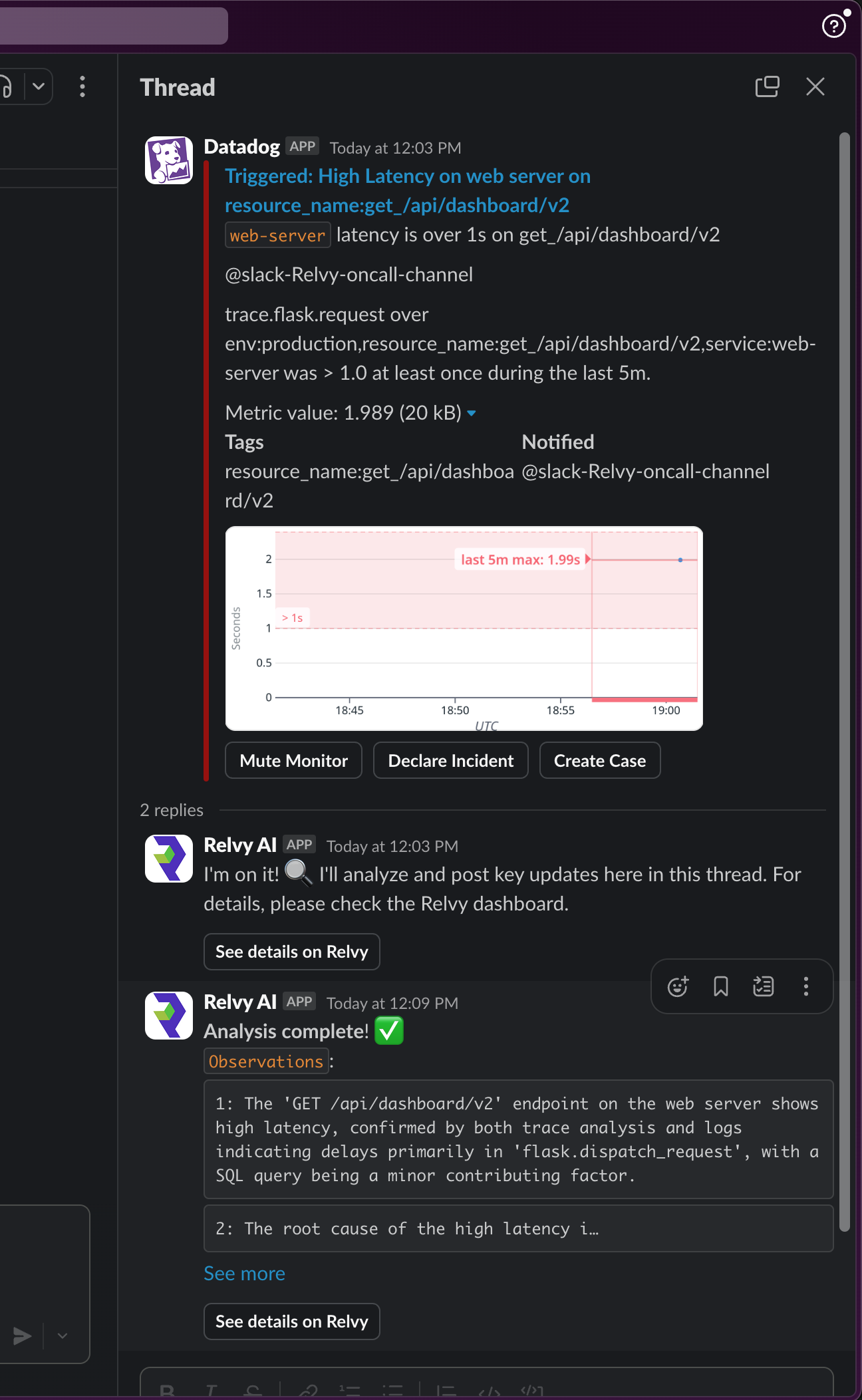
➤ Investigate Alerts Automatically
Add Relvy to any channel receiving alerts from observability tools. When an alert is posted:- Relvy can automatically investigate the alert (if auto-investigation is enabled)
- Or, a team member can manually select an alert and prompt Relvy to analyze it. Invoke
@Relvy AIin the alert thread.
Setting Up Auto-Investigate
Set Relvy to auto-investigate alerts in your on-call Slack channel with the slash command/auto-investigate. You can choose which alerts Relvy responds to via workspace configuration options. For example: “Auto-investigate alerts from the PagerDuty and Datadog bots”.
Setup Steps:
-
Invite
@RelvyAIto your on-call Slack channels if not already present -
Connect your Slack channel to a Relvy workspace if not already done. This is via the slash command:
-
Enable auto-investigate by typing the slash command in the channel:
- Configure which bots to respond to: You will get a link to your workspace configuration page, where you can specify which bots Relvy will respond to.
- Relvy will now start investigating matching alerts and posting the analysis on the same Slack thread.
-
To cancel auto-investigate, use the slash command:
➤ Results in Context
Relvy replies in the same Slack thread where the alert was posted Responses include:- Link to Relvy investigation for details
- High level summary of investigation from each data modality - logs/dashboards/events etc.
- Root cause hypotheses
Recommended Channels
To get the most out of Slack integration, consider adding Relvy to:- Production alerting channels
- On-call rotation channels
- Incident command rooms
- Engineering team channels where investigations typically start